
Purpose
Instruction will explain basics steps to prepare system to send data for analytic’s. Before proceeding please agree with your consultant email Subjects and data delivery methods. This instruction will affect only email sending methods, but data possible also get over REST/SOAP API, database, etc.
Activities before start
- Agreed email subject for IVM report.
- Agreed email subject for work hours report and excel/csv file name. (Default workhours.xlsx or workhours.csv)
- Agreed time of data range in report. (default 1 month)
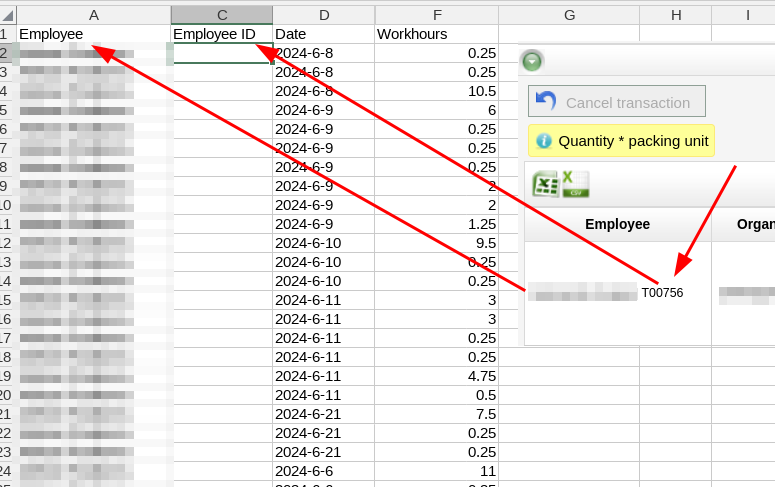
- Ensure that work hours report have same values for connection with IVM report Employee name or ID ( look picture
Please log in in your SaveLog System and prepare report values , and follow picture instruction .
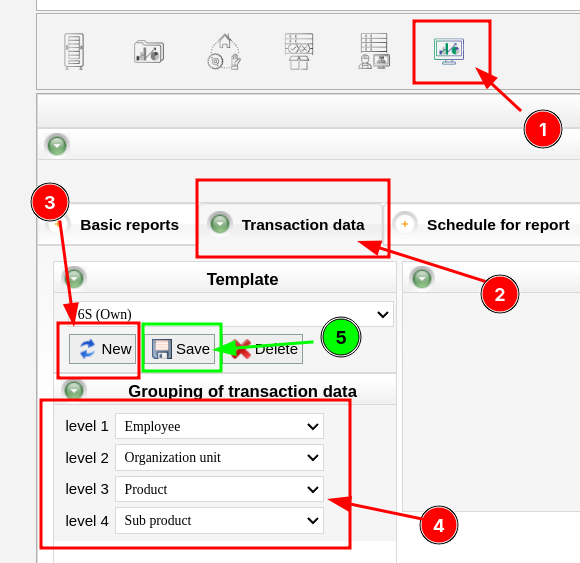
When template are prepare please move to Schedule for report.
Choose template that you created, set settings as on picture in subject set agreed email subject for IVM Report click save.
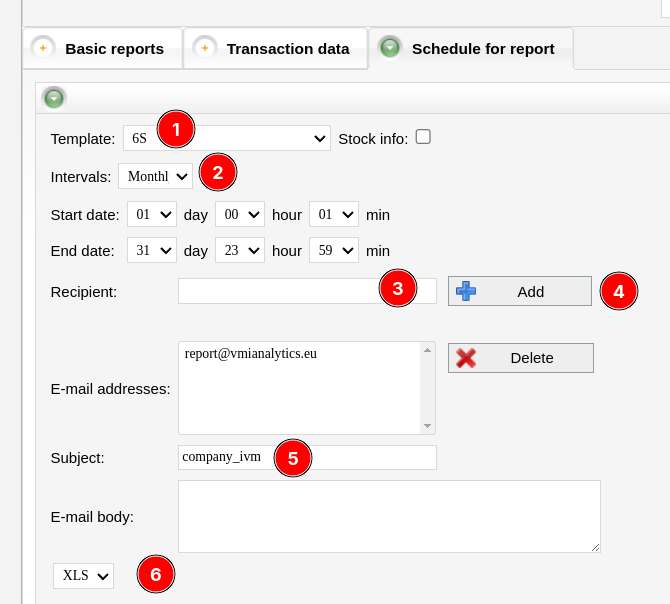
SaveLog System setup is finished. But first time you need send report manually.
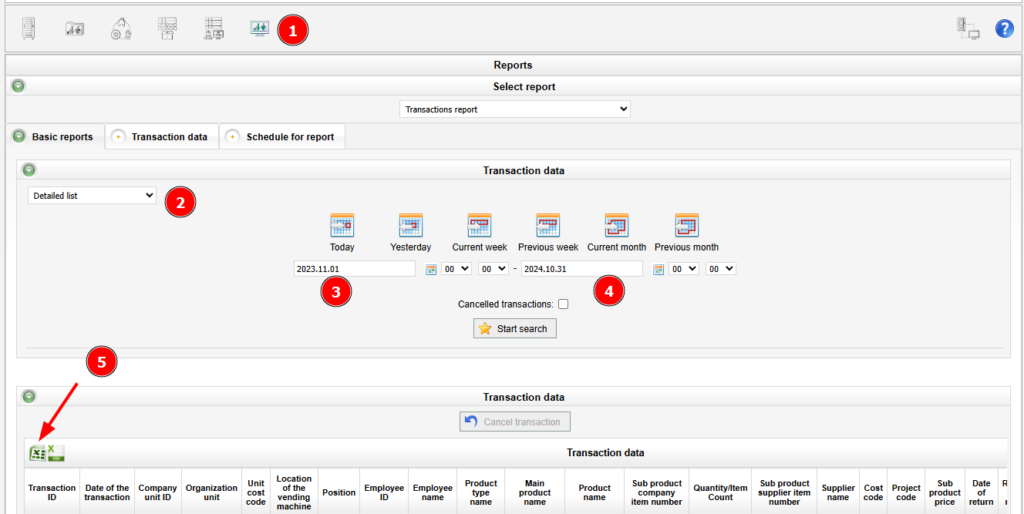
Go to Basic Reports and export Detailed list to XLSX file type. Save report to your computer and send at report@vmianalytics.eu with Subject Company Name Onboarding.
If you want to connect Analytics with employee workhours you need send workhours at the start of each month. ( workhours can be collected automatically over API if your ERP/WMS etc allow it )
We will overview standart process of sending workhours by email in excel file. Ensure that your work hours report have 3 mandatory values.
- Employee name or ID same as in IVM
- Date value
- Work hours values ( can be stored by day or as total hours per month) Template_Totall_Workhours , Template_Workhours_by_Record
Report can also consist another data that can be used for different type of analytic if you ordered custom setup.
Work hours report must be send each month with agreed email subject and file name, till work hours report not imported in our database, some reports in Redash will not work properly, workhours will be calculated as standard working hours in month (168h).
If you have any issues or question, please contact “report@vmianalytics.eu“